From import to shared: bring your Kubernetes clusters into Wayfinder
Point Wayfinder at your AWS, Azure or GCP account, pick the cluster, and it shows up under a workspace in seconds. Share it globally or scope it to specific workspaces and environments. Developers get short-lived kubectl sessions mapped straight to Kubernetes RBAC. No kubeconfig sharing, no service accounts on laptops, no permanent tokens.
The sharing model
The platform team owns the cluster. Other workspaces get access, scoped to the environments they need.
The walkthrough
Four steps: import the cluster, share it with the workspaces that need it, configure how developers map to Kubernetes roles, and get a short-lived kubectl session.
Wayfinder discovers existing clusters in your cloud account through a CloudAccess credential the platform team already wired up. The wizard is three steps: pick a provider, pick a cluster Wayfinder finds for you, then pick the environment it lives in.
Open the import dialog.
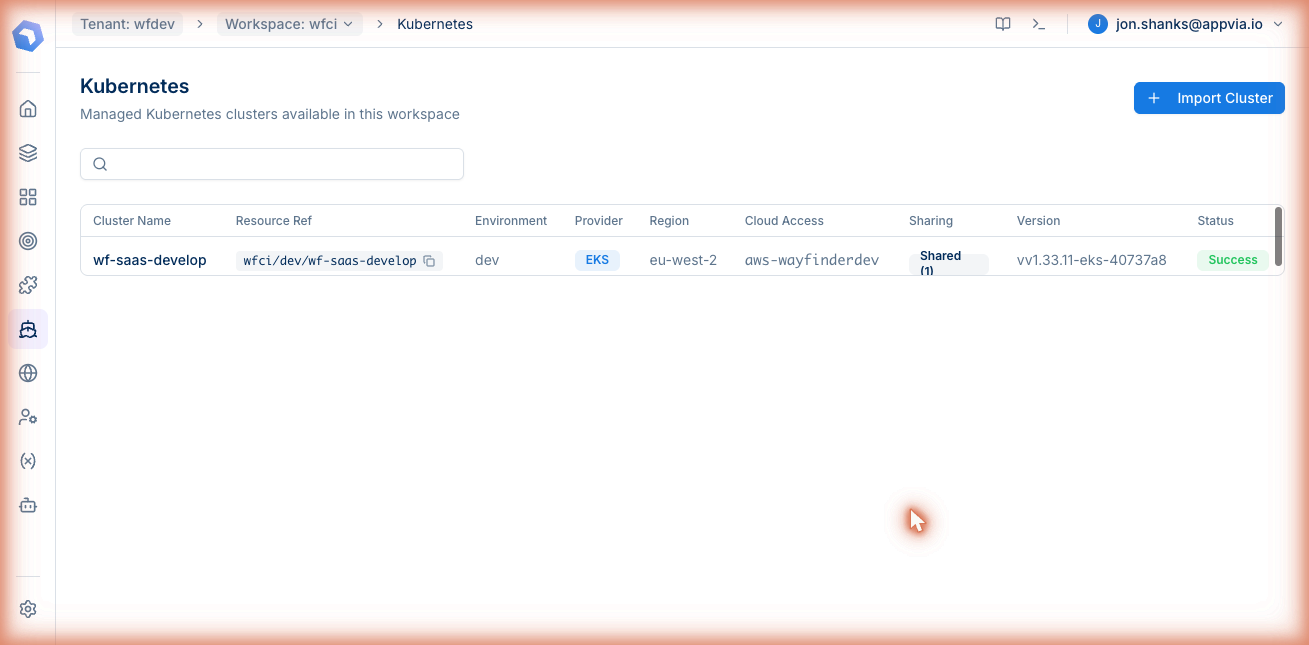
In a workspace, open Kubernetes and click Import Cluster. The cluster list shows what's already in this workspace, with the import button in the top right.
Step 1: Provider.
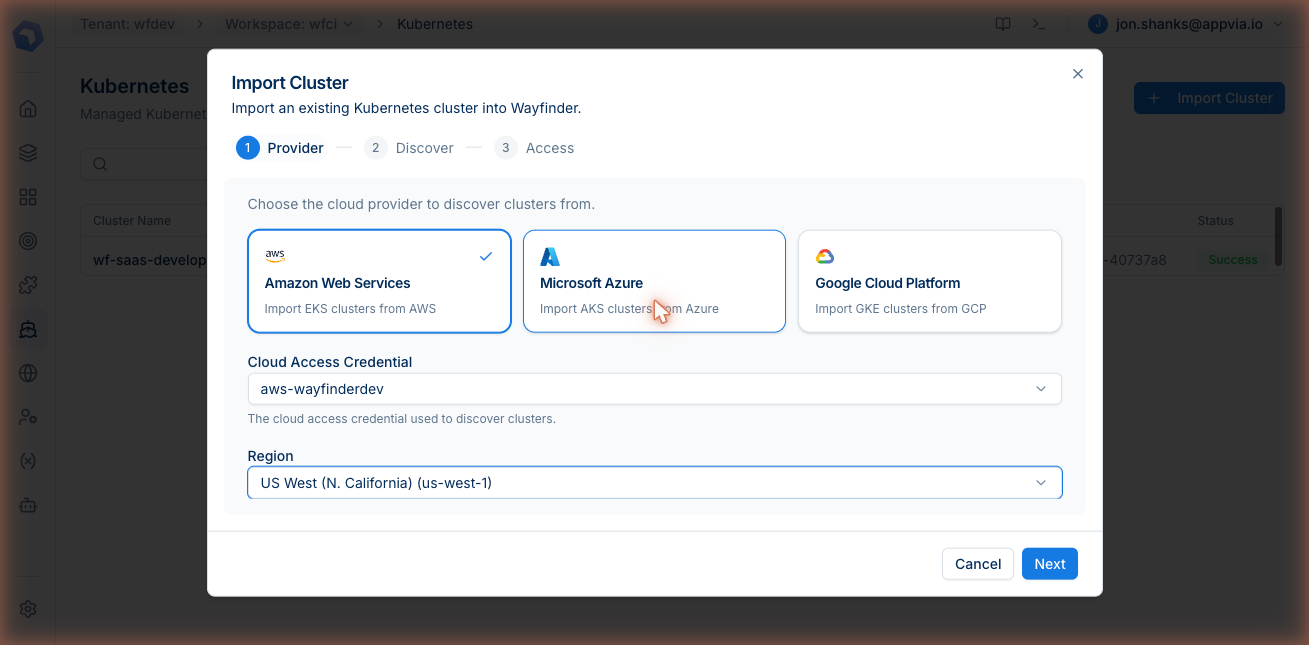
Choose AWS, Azure or GCP, then pick the CloudAccess credential and the region to scan. Wayfinder uses that credential (itself a short-lived, scoped role) to call the cloud's native discovery API.
Step 2: Discover.
Wayfinder calls the cloud API (eks:ListClusters, aks list, or the GKE equivalent) and shows every cluster it finds in that region, including any already imported. Pick one and continue.
Step 3: Access.
Pick the Wayfinder environment the cluster belongs to (dev, staging, prod or whatever your team uses). That single field is what later lets you scope sharing by environment, and what shows up on every stack instance running on this cluster.
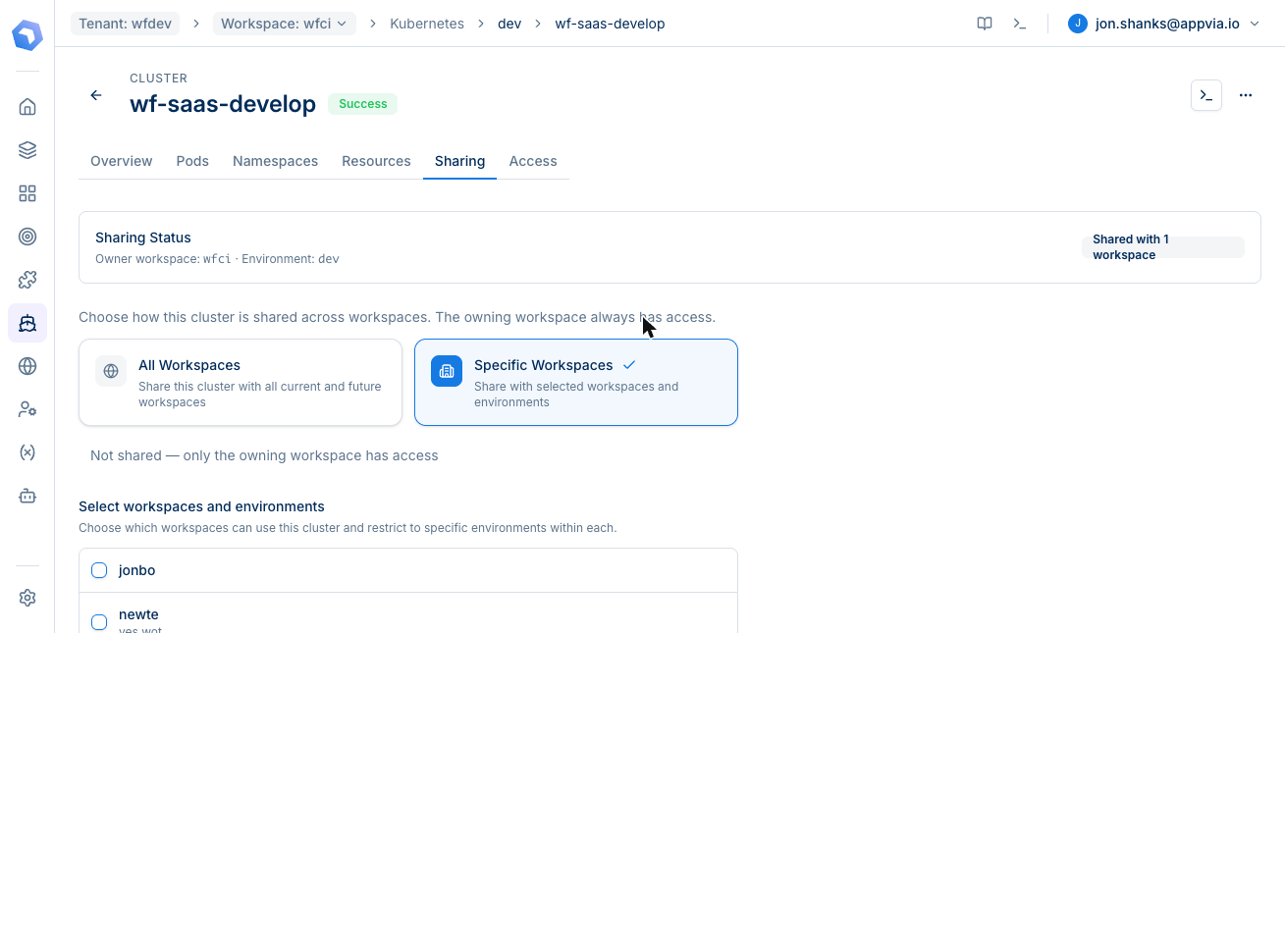
An imported cluster starts private to the workspace that imported it. The Sharing tab on the cluster is where the platform team opens it up: to specific workspaces with specific environments, or to every workspace in the tenant.
- All workspaces. The cluster is available to every current and future workspace. Useful for a shared sandbox or a tenant-wide cluster.
- Specific workspaces. Pick the workspaces individually. For each one, choose All environments or restrict to one or more environments inside that workspace.
Environment scoping in plain English.
The platform team's wf-saas-develop cluster is owned by workspace wfci in environment dev. The sharing UI lets the platform team say "workspace mark can use this cluster across all of their environments, workspace jonbo can use it but only for environment dev". A workspace you didn't tick simply doesn't see the cluster at all.
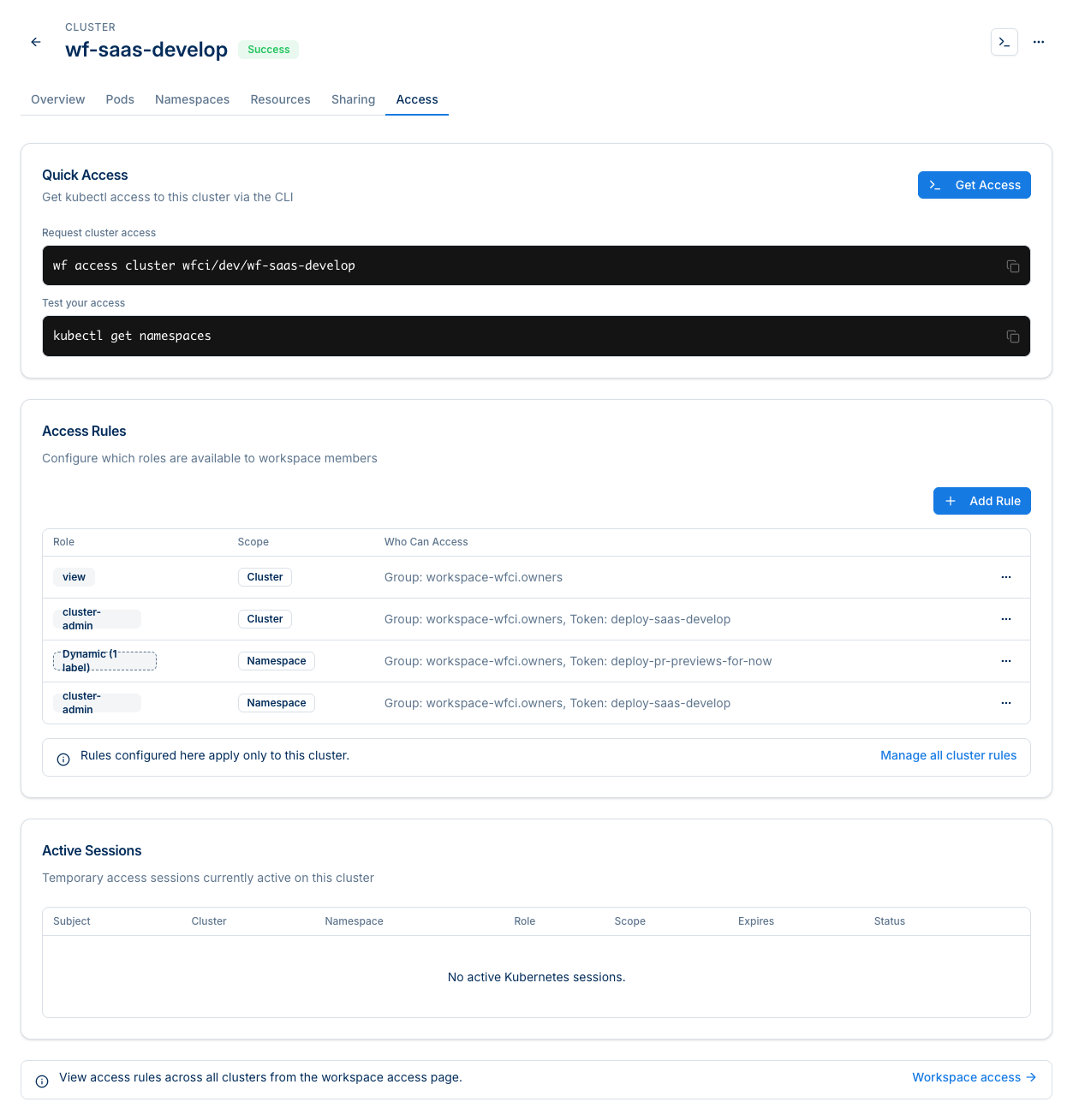
Sharing a cluster says who can ask for access. The Access tab says what they can do when they get it. Each access rule maps a Kubernetes role (by name, like view, cluster-admin, or a custom ClusterRole) to a subject inside Wayfinder: a workspace group, a Wayfinder user, or a deploy token.
What the rules look like.
Each row is a one-line policy: "members of workspace-wfci.owners get the Kubernetes view role at cluster scope". Scope can be the whole cluster or a single namespace. Subjects can be a Wayfinder group, an individual user, or a deploy token used by CI.
Dynamic mappings for ephemeral workloads.
The Dynamic rule type is how PR-preview environments work: any namespace carrying a matching label gets the bound role automatically. Spin up a preview, the namespace appears, the rule applies. Tear it down, the rule stops applying.
From a developer's seat the whole thing is one command for cluster access, one for deploys. Wayfinder vends a short-lived session, writes a temporary kubeconfig entry, and kubectl just works against the cluster with the role their workspace allows.
Quick Access from the cluster page.
Every cluster in Wayfinder has a Quick Access strip that copy-pastes the exact CLI commands. No guessing the resource reference, no aws eks update-kubeconfig, no IAM auth helper to install.
wf access cluster wfci/dev/wf-saas-developkubectl get namespacesDeploy a workload to the cluster.
Same cluster, same scoping rules, different verb. wf deploy pushes a stack from your laptop or your pipeline straight onto the shared cluster, using the deploy token's access rule for the namespace and role.
wf up -f ./Wayfinder.yaml \
  -i my-app \
  --workspace wfci \
  --environment dev
What just happened.
-
Sharing was checked
Does your workspace have access to this cluster, in this environment?
-
Access rules were resolved
Which Kubernetes role are you bound to, and at what scope?
-
A short-lived session was vended
Typically minutes to hours, configurable per rule. It expires automatically.
-
kubectl just worked
A temporary kubeconfig entry is the only thing on your machine, and it expires with the session.
Visible to the platform team.
Every session shows up under Active Sessions on the cluster: who, which role, what scope, when it expires. Revocation is a click. Audit is automatic.
Try it on your own cluster
Bring an existing EKS, AKS or GKE cluster into a free Wayfinder tenant, share it with a teammate's workspace, and watch wf access cluster hand out a short-lived session in seconds.